

Managing Templates
Create, edit, and manage your document templates using the Pogodoc Dashboard
Managing Templates
The Pogodoc Dashboard provides a powerful interface for creating, editing, and managing your document templates. Whether you're building templates from scratch, editing existing ones, or using community templates, the dashboard makes it easy to manage your entire template library.
The visual editor, AI Doc, and preview features are available for EJS/HTML templates only. React/JavaScript framework templates can be uploaded but will not have preview or visual editing capabilities.
Template Dashboard Overview
Access your templates at app.pogodoc.com/templates.
The dashboard is divided into two main sections:
- My Templates - Your personal template library
- Community - Curated templates from Pogodoc and the community
Creating Templates
There are multiple ways to create templates in the Pogodoc Dashboard:
Start a New Template
Click the "+" button or the large "Create Template" card to begin.
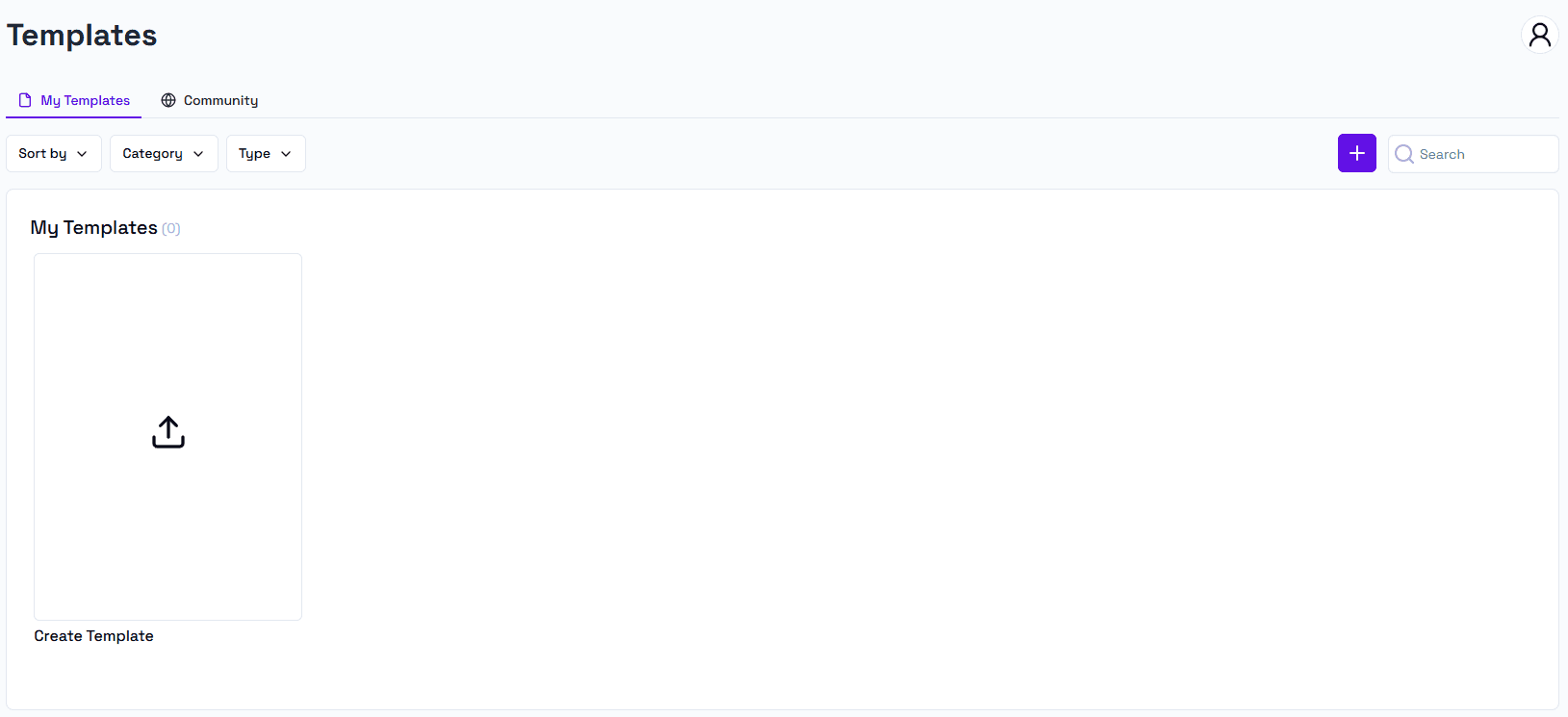
You'll be presented with the Create/Edit template workflow.
Create/Edit Workflow
There are multiple features that this workflow offers:
- Create from scratch - Start from blank
- Use AI Doc - Describe your template and let AI generate it
- Upload from mobile - Scan a physical document with your phone
- Upload existing - Upload a ZIP file (for JS framework templates or existing EJS/HTML templates)
- Editor - Edit templates with a no-code drag and drop editor
- Sample Data - Edit sample data that will fill your template
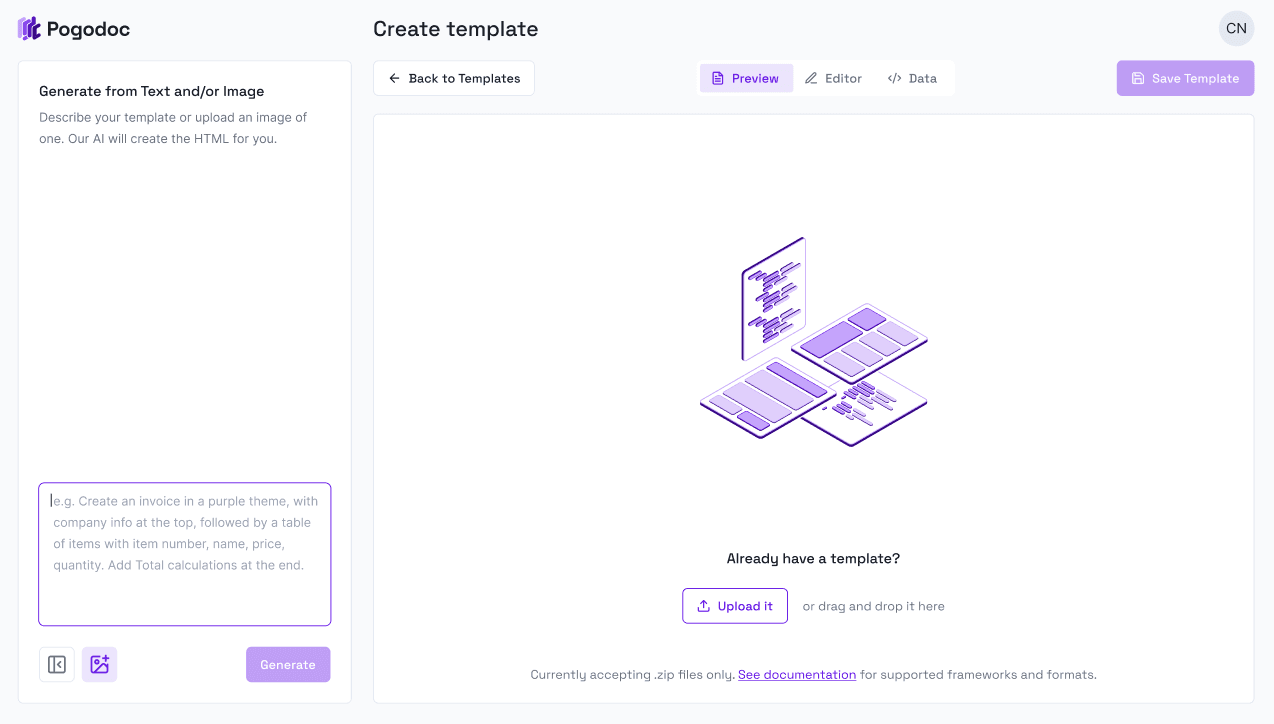
Here you can start by uploading a template. It must be a .zip folder that includes your template. This is a requirement for both EJS/HTML templates and JS Framework templates.
Or, you can start talking with AI Doc and describe the template you want.
Use AI Doc (EJS/HTML Only)
The AI chatbot helps you create or modify templates using natural language.
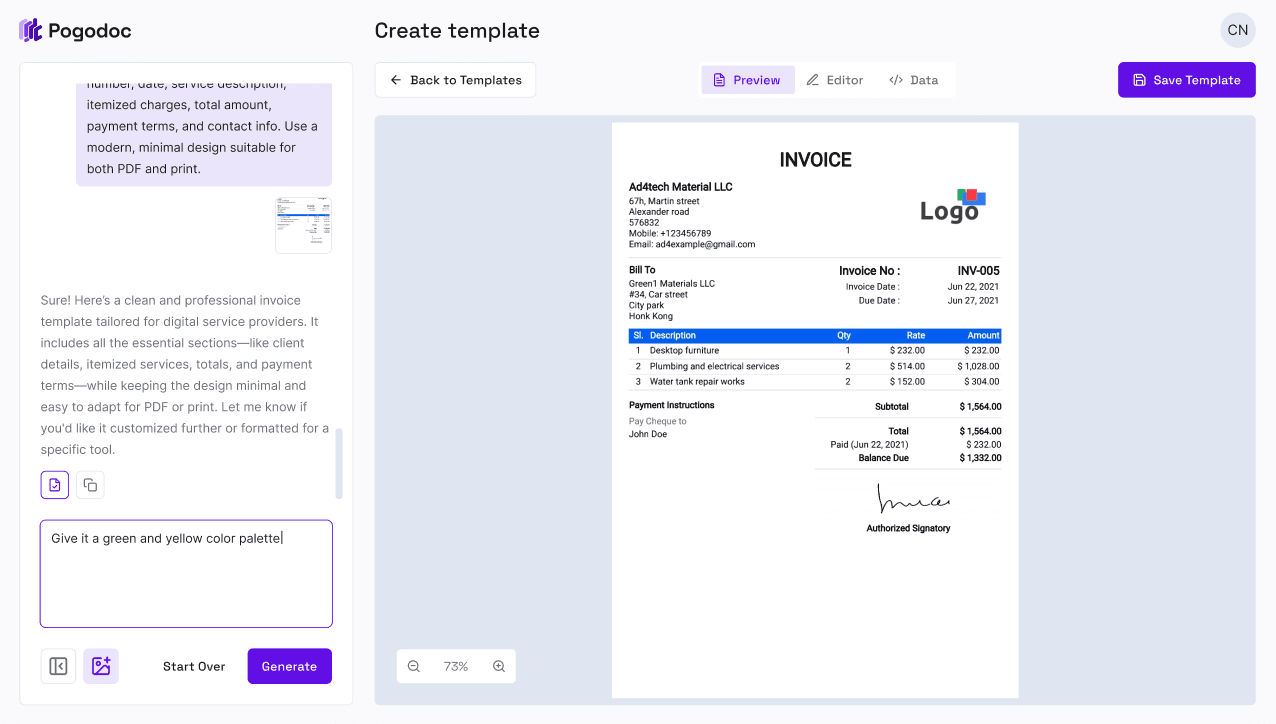
How it works:
- Describe what you want: "Create an invoice template with line items, totals, and a company logo section"
- The chatbot generates the HTML/EJS code
- Preview updates in real-time on the right side
- Refine with follow-up requests: "Make the header blue and add tax calculation"
- Continue iterating until satisfied
Example prompts:
- "Create a receipt template for a coffee shop"
- "Add a signature line at the bottom"
- "Change the table styling to have alternating row colors"
- "Add a watermark that says 'PAID' when status is paid"
Advanced Chatbot Features
Upload Images or Files
Upload reference documents to help the AI understand your desired template:
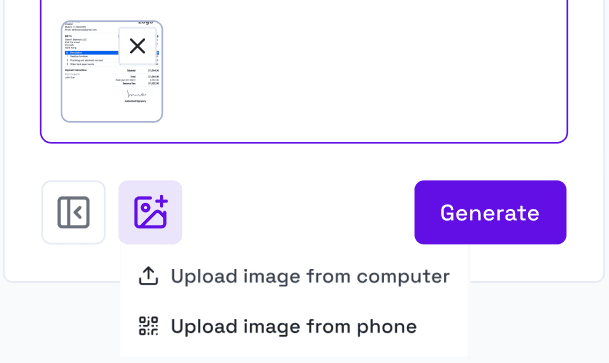
- Option 1: Click the Upload file from computer button in the chat interface\
- Option 2: Drag and drop files directly into the chat, or paste them in the chat
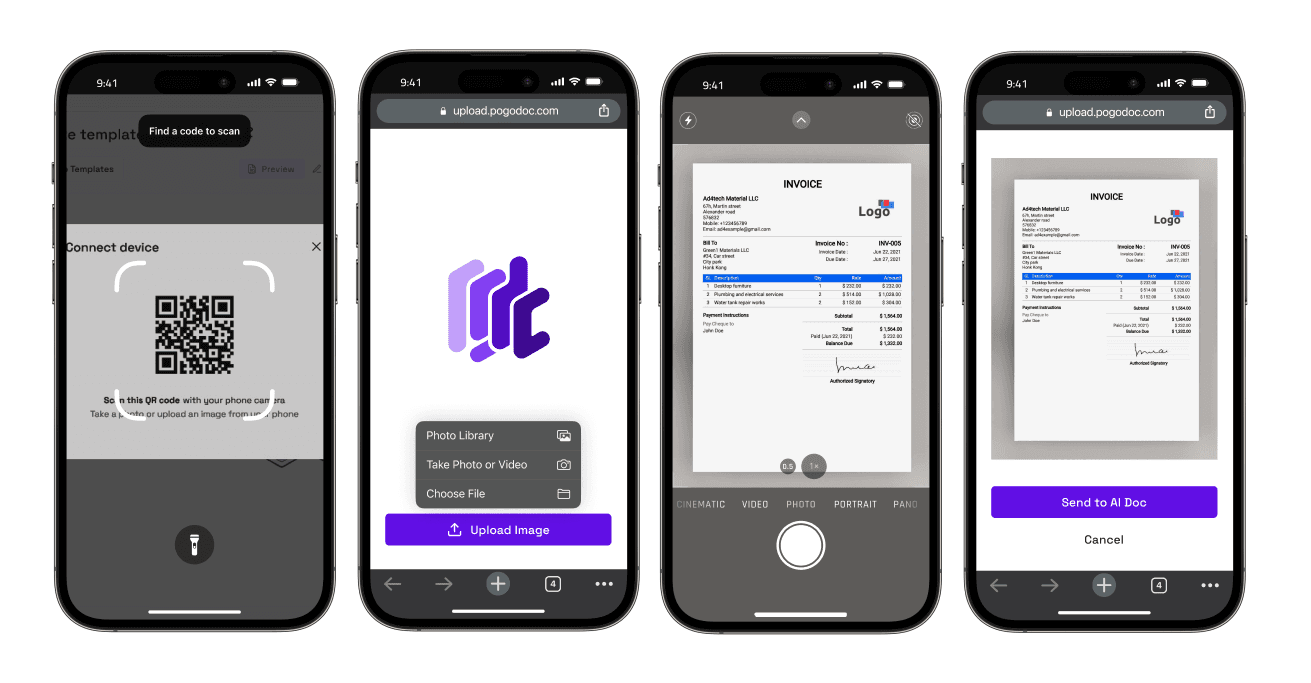
- Option 3: Click on Upload file from phone to upload from your mobile device:
- Scan the QR code with your phone's camera
- Open the link
- Take a picture of your document, select an image from your gallery or upload a file
- Click on "Send to AI Doc"
- The image will pop-up in your chat
Pro Tip: For best results, photograph documents on a flat surface with good lighting and minimal shadows.
AI Doc analyzes your document and:
- Extracts the layout and structure
- Identifies text fields and data placeholders
- Recreates the styling (fonts, colors, spacing)
- Generates clean EJS/HTML code
Supported file types:
- Images (PNG, JPG, PDF)
- Documents (PDF, Word, Excel)
- Existing templates for reference
Version History During Creation
The chatbot automatically saves each response as a version:
- Every AI response creates a new version
- Click "Revert" to go back to any previous response
- Compare different iterations side-by-side
- No changes are lost - all versions are preserved during creation
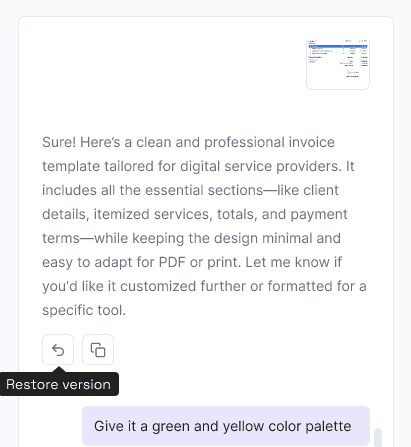
This lets you experiment freely and return to earlier versions if needed.
Select AI Models
Choose from different AI models for template generation. Switch models mid-conversation if one works better for your use case. Some model may require a different subscription plan.
Note: AI chatbot features are only available for EJS/HTML templates. React templates must be built using your local development environment.
Use the Visual Editor (EJS/HTML Only)
Switch to the "Editor" tab for a no-code visual editing experience. You can switch to the "Preview" tab at any time to preview how your document will look like, when it is filled with the data found in the "Data"
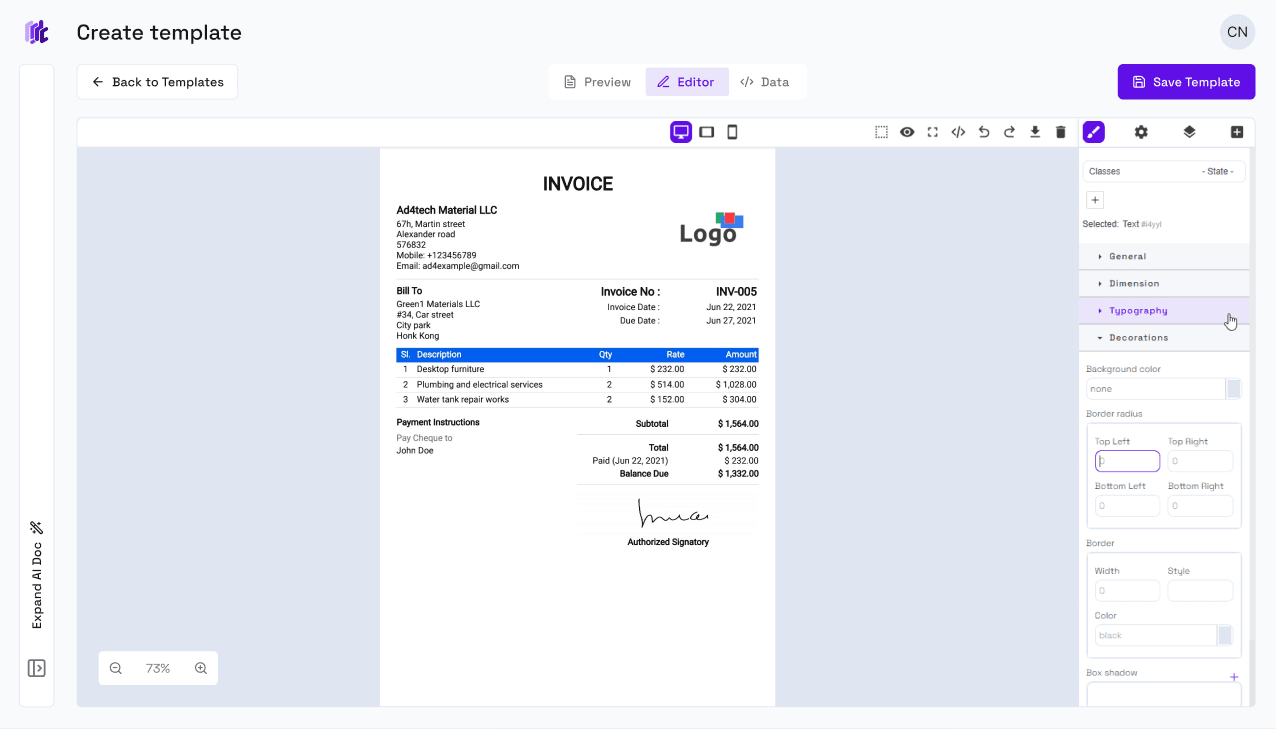
Note: When you want to create placeholders for your data. The text element you create with your editor must have EJS nomenclature. Follow EJS documentation.
The visual editor provides:
Text Styling
- Font family, size, and color
- Bold, italic, underline
- Text alignment
- Line height and spacing
Layout Management
- Add/remove sections
- Adjust margins and padding
- Set widths and heights
- Position elements
Design Elements
- Background colors
- Borders and border radius
- Shadows and effects
- Box sizing
Images & Media
- Upload images
- Position and resize
- Add alt text
- Image styling
Tables
- Insert tables
- Style headers and cells
- Add/remove rows and columns
- Cell padding and borders
Dynamic Content
- Insert data placeholders
- Add conditional sections
- Loop through arrays
- Format numbers and dates
The visual editor generates clean EJS/HTML code that you can further customize in the code view if needed.
Edit Sample Data
Switch to the "Data" tab to define the sample data for your template.
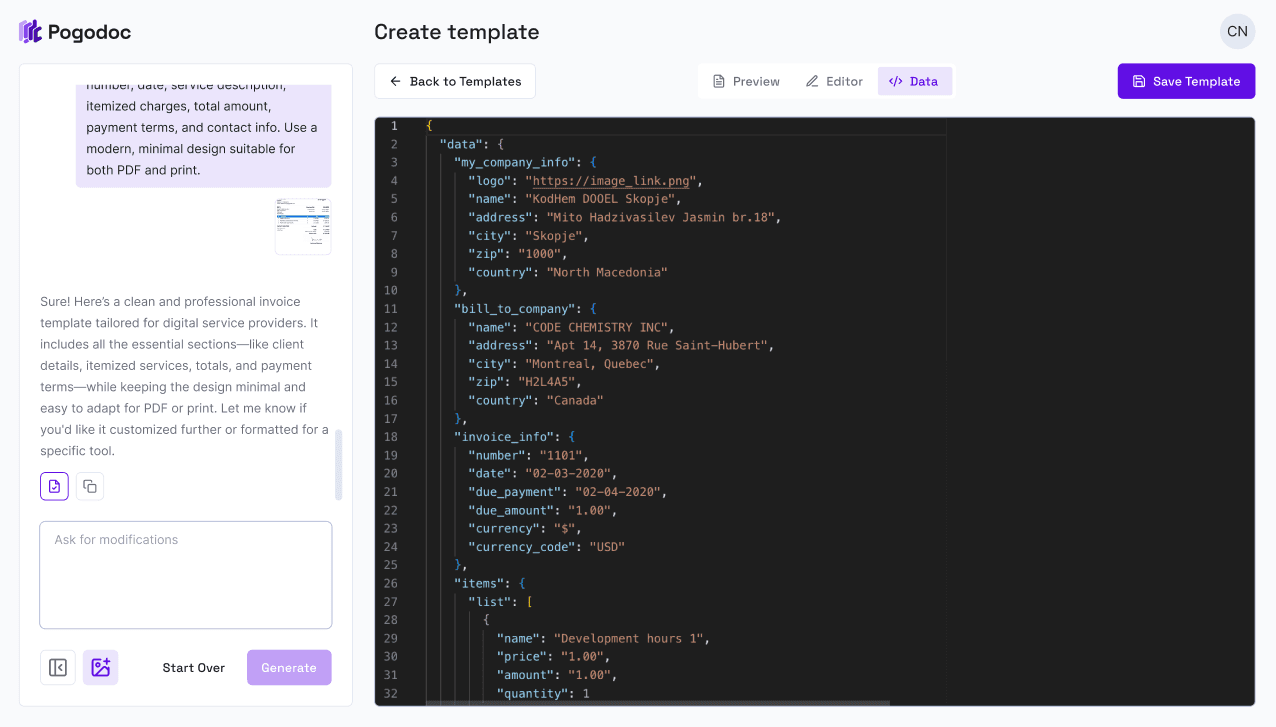
The data editor lets you:
- Edit JSON directly with syntax highlighting
- Define the structure of data your template expects
- Test different data scenarios
- See live preview updates in the "Preview" tab as you change data
Example data structure:
{
  "my_company_info": {
    "logo": "https://image_link.png",
    "name": "Kodhen DOOEL Skopje",
    "address": "Mito Hadživasiliev Jasmin br.18",
    "city": "Skopje",
    "zip": "1000",
    "country": "North Macedonia"
  },
  "bill_to_company": {
    "name": "CODE CHEMISTRY INC.",
    "address": "Apt 14, 3670 Rue Saint-Hubert",
    "city": "Montreal, Quebec",
    "zip": "H2L0G5",
    "country": "Canada"
  },
  "invoice_info": {
    "number": "1101",
    "date": "02-03-2020",
    "due_payment": "02-03-2020",
    "due_amount": "1.00",
    "currency": "$",
    "currency_code": "USD"
  },
  "items": [
    {
      "name": "Development hours 1",
      "price": "1.00",
      "amount": "1.00",
      "quantity": 1
    }
  ]
}
This sample data is used to generate the preview when you save your template.
Preview Your Template
Click the "Preview" tab to see how your template renders.
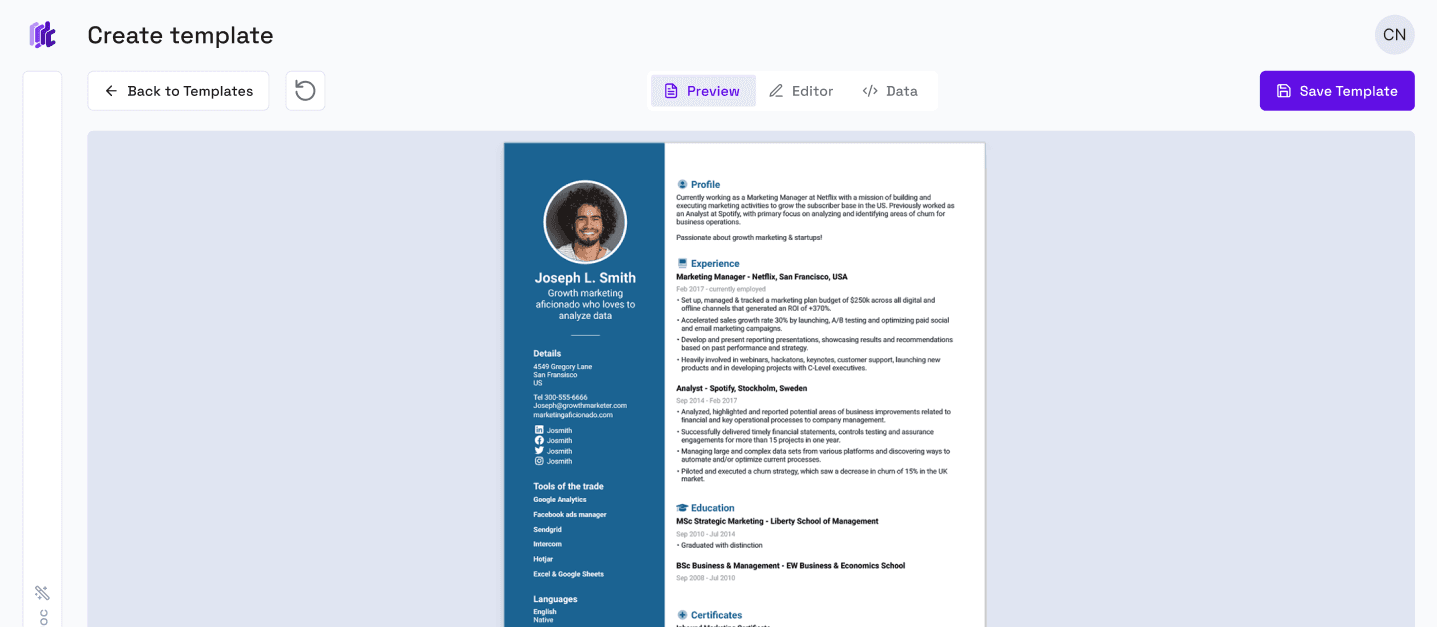
Preview is only available for EJS/HTML templates. React templates must be tested locally before uploading.
Save Your Template
Click "Save Template" to finalize and save to your library.
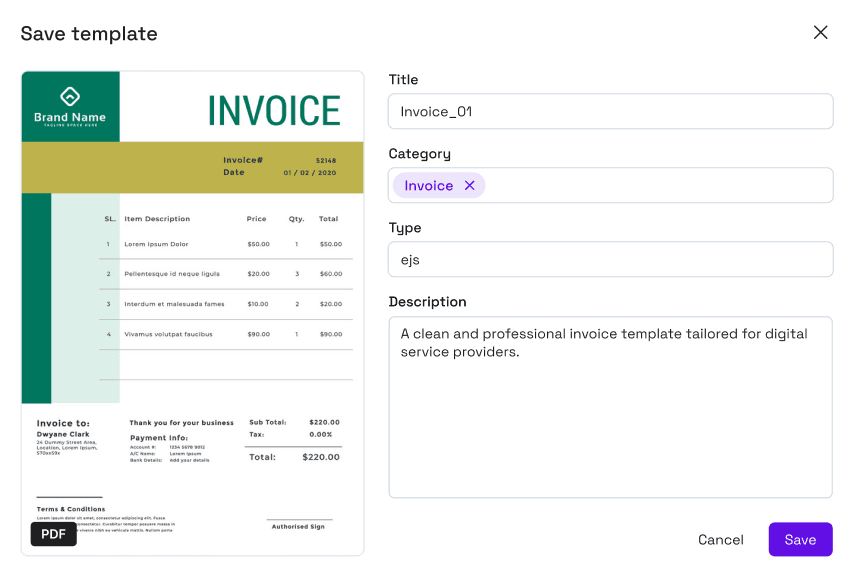
You'll need to provide:
Required Information
- Title - A descriptive name for your template
- Type - Select template type:
ejs- EJS templateshtml- Plain HTML templatesreact- JavaScript framework templateslatex,docx,xlsx,pptx(coming soon)
Optional Metadata
- Category - Tag your template (invoice, cv, receipt, certificate, etc.)
- Description - Detailed explanation of the template's purpose
After saving, you'll receive:
- A unique Template ID for API usage
- Access to edit or delete the template
Template IDs are immutable and can be used immediately in your API calls.
Managing Your Templates
Access all your templates from the "My Templates" tab.
Template Actions
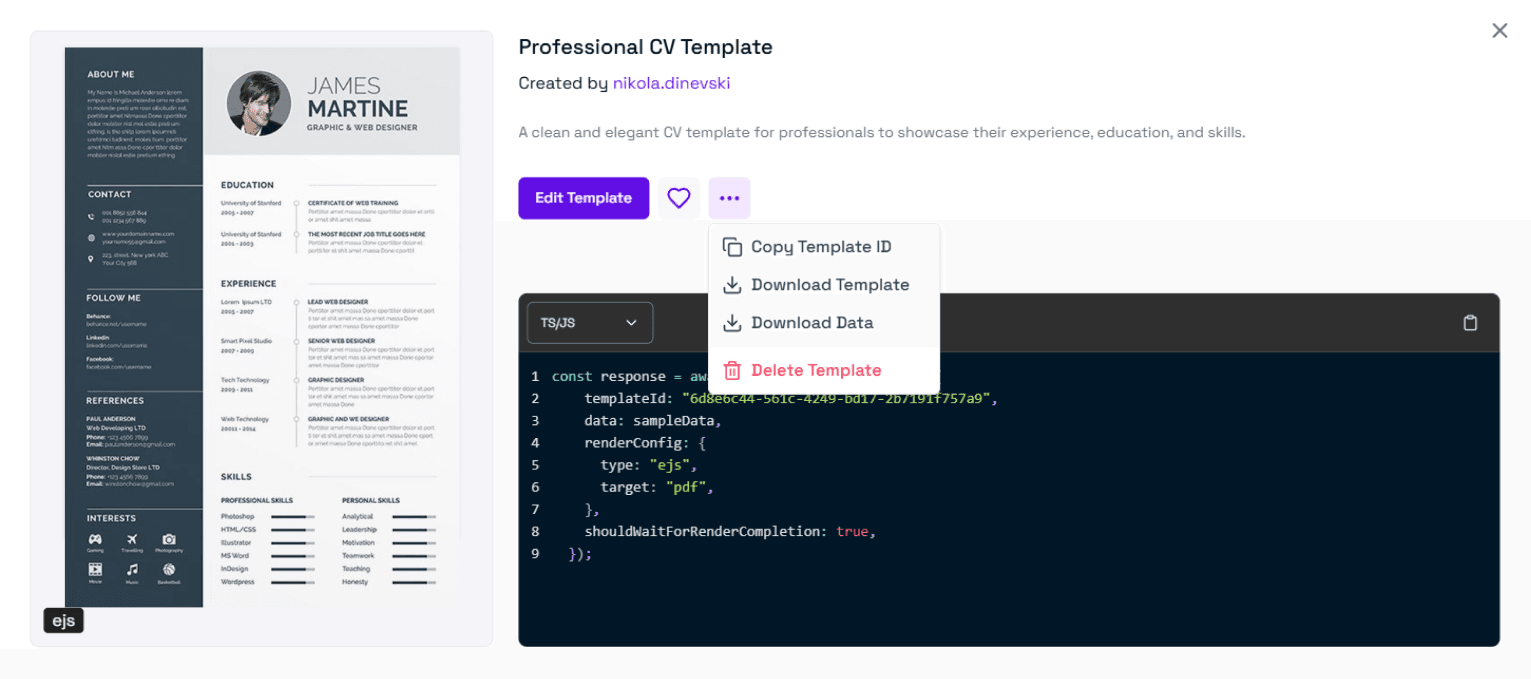
Each template card provides quick actions and detailed view:
1. Edit Template
Click on any template to open it in the create/edit workflow. You can:
- Modify the design using the chatbot or visual editor
- Update sample data
- Change template metadata
2. Download Template
Download the template files for local editing or backup:
- Download Template - Get the ZIP file containing your template
- Download Sample Data - Get the JSON file with sample data
3. Copy Template ID
Quickly copy the template ID to use in your code with SDKs or our API.
4. Use Generated Code
This tab offers a quick code snippet that you can use through our SDKs.
Simply copy and paste the code into your application!
5. Favorite Templates
Star your most-used templates for quick access. Favorites appear at the top of your template list.
6. Delete Template
Remove templates you no longer need. This action is permanent and cannot be undone.
Warning: Deleting a template does not affect documents already generated from it, but the template ID will no longer work for new documents.
Sorting and Filtering
Organize your templates using:
- Sort by: Name, Date Created, Date Modified, Most Used
- Filter by Type: EJS, HTML, React, All
- Search: Find templates by name or description
- Favorites only: Show only starred templates
Community Templates
Access professionally designed templates from the "Community" tab.
What are Community Templates?
Community templates are:
- Curated by Pogodoc - High-quality templates built by our team
- Community contributed - Templates shared by other Pogodoc users
- Free to use - Available to all Pogodoc users
- Customizable - Clone and modify to fit your needs
If you want to use a community template. Click on "Clone" and this template will apear in "My Templates". Then you can continue editing your template.
Community templates are starting points. Feel free to customize them extensively to match your specific requirements.
Best Practices
1. Use Descriptive Names
Give your templates clear, descriptive names:
✅ Good: "Invoice - Modern Blue Theme"
❌ Bad: "Template 1"
2. Organize with Categories
Use categories to group similar templates.
3. Maintain Sample Data
Keep sample data up-to-date and realistic:
- Use real-world examples
- Include edge cases (long names, many items, etc.)
- Test with actual data before deploying
4. Document Your Templates
Add detailed descriptions:
- What the template is for
- Required data fields
- Special formatting requirements
- Any custom logic or calculations
5. Test Before Production
Always test templates thoroughly:
- Generate PDFs with various data sets
- Check page breaks and layout
- Verify all data placeholders work
- Test on mobile and desktop
6. Backup Important Templates
Download template files for backup:
- Keep local copies of critical templates
- Store sample data separately
- Document any custom configurations
Troubleshooting
Template Won't Save
- Check all required fields are filled
- Ensure sample data is valid JSON
- Verify template syntax is correct
- Try refreshing the page
Preview Not Showing
- EJS/HTML templates only support preview
- Check for syntax errors in your template
- Verify sample data is properly formatted
- Clear browser cache and reload
Code Snippets Not Copying
- Try using the manual copy button
- Check browser clipboard permissions
- Refresh the page and try again