

Managing API Tokens
Complete guide to managing API tokens for secure Pogodoc authentication
API Tokens
API tokens are secure credentials that authenticate your applications with the Pogodoc API and SDKs. Think of them as passwords that allow your code to access Pogodoc services on behalf of your account. If you are a company that wants metric controlled usage by department, project, or developer, you can create different API tokens and view metrics per API token.
Manage all your API tokens at app.pogodoc.com/api-tokens.
Quick Start
Subscribe to a plan
To set-up quickly and free, you can subscribe to the Free Plan.
Generate Your Token Create a new API token from the dashboard with a
descriptive name.
Store Securely Add the token to your environment variables - never
hardcode it in your source code.
Use in Your App
Pass the token to the Pogodoc SDK or include it in API request headers.
You'll be prompted to choose a plan before creating your first token if you don't have an active subscription.
What are API Tokens?
API tokens are unique, secret strings that identify and authorize your application when making requests to the Pogodoc API.
Key Characteristics
- Unique - Each token is globally unique to your account
- Secret - Tokens should never be shared publicly or committed to version control
- Revocable - You can delete tokens at any time to immediately stop their access
- Trackable - Monitor usage and document generation per token
Token Limits
- Maximum Active Tokens: 10 per account
- Deleted Tokens: Do not count toward this limit
If you need more than 10 active tokens, please contact support to discuss enterprise options.
Creating API Tokens
Generate new API tokens from the API Tokens dashboard.
Navigate to API Tokens
Go to app.pogodoc.com/api-tokens or click API Tokens in the main navigation.
Generate New Token 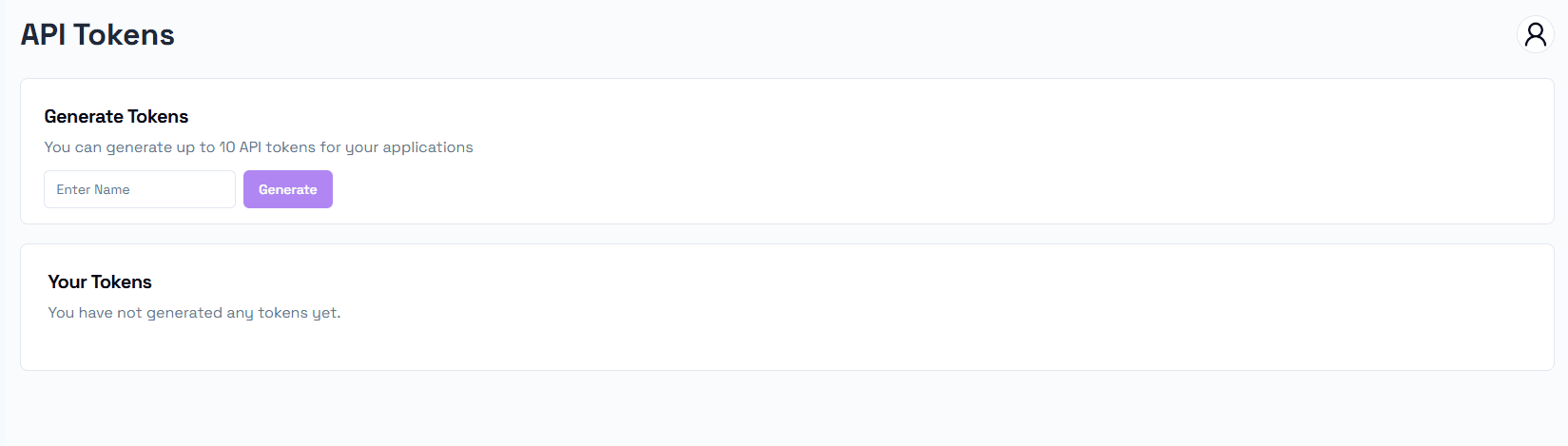
- Click the "Generate" button in the "Generate Tokens" section 2. Enter a
descriptive name for your token - Use names that indicate purpose:
production-api,staging-server,dev-local- Keep it short (1-20 characters) - Use descriptive names to identify usage later 3. Click "Generate" or press Enter
Copy and Save Token
Critical: You can only view the token once! You should immediately save it in a secure location.
Store your token in:
- Environment variables in your deployment platform
- Secret management systems (AWS Secrets Manager, Azure Key Vault, etc.)
- Password managers for local development
.envfiles (never commit these to git!)
Do NOT store tokens in:
- Source code files
- Version control systems (Git, SVN, etc.)
- Documentation or wikis
- Shared documents or chat messages
Using API Tokens
Once you have an API token, you can use it to authenticate with Pogodoc services.
Tokens are used for our official SDKs when initializing the Pogodoc client, and provided as an Authorization header with our API.
Environment Variables
Store your token in environment variables for security:
POGODOC_API_TOKEN=your_token_hereAdd .env to your .gitignore to prevent accidentally committing tokens!
AWS
aws secretsmanager create-secret \
  --name pogodoc-api-token \
  --secret-string "your_token_here"
Azure
az keyvault secret set \
  --vault-name mykeyvault \
  --name pogodoc-api-token \
  --value "your_token_here"
Heroku
heroku config:set POGODOC_API_TOKEN=your_token_hereVercel
vercel env add POGODOC_API_TOKENEnvironment file
POGODOC_API_TOKEN=your_token_hereManaging Your Tokens
View and manage all your API tokens from the API Tokens dashboard.
Token Dashboard
The dashboard displays all your tokens and their usage (how many documents have been generated with a token).
Viewing Tokens
The dashboard has two tabs:
Active Tokens
Shows all currently usable tokens.
Deleted Tokens
Shows previously deleted tokens for audit and reference purposes. These tokens no longer work but are kept for record-keeping.
Token Statistics
You can filter by API Token usage in the main Dashboard.
Deleting Tokens
Remove tokens you no longer need to improve security.
Navigate to Active Tokens
Go to the Active tab in your token dashboard.
Delete the Token 1. Find the token you want to remove 2. Click the red
"Delete" button 3. Confirm the deletion in the dialog
Update Your Applications
Deleted tokens stop working immediately. Any applications using the deleted token will start receiving 401 Unauthorized errors.
Before deleting, make sure to:
- Update applications to use a different token
- Remove the deleted token from environment variables
- Check CI/CD pipelines for references
- Notify team members if applicable
Recovery
Deleted tokens cannot be restored. If you accidentally delete a token:
- Generate a new token
- Update all applications with the new token
- The old token is permanently invalidated
Best Practices
Security
DO
- Store in environment variables - Use
.envfiles locally, secret managers in production - Use separate tokens - Different tokens for development, staging, and production
- Rotate regularly - Generate new tokens periodically (quarterly recommended)
- Monitor usage - Check the dashboard for unexpected activity
- Delete unused tokens - Remove tokens for deprecated projects
DON'T
- Commit to version control - Never push tokens to Git, GitHub, GitLab, etc.
- Share publicly - Don't post tokens in forums, issues, or chat
- Hardcode in source - Avoid putting tokens directly in code files
- Reuse across environments - Don't use production tokens in development
- Share between teams - Generate separate tokens for different teams/projects
Token Naming Conventions
Use clear, descriptive names that indicate the token's purpose:
✅ Good Examples:
- production-api-server
- staging-web-app
- dev-john-local
- ci-github-actions
- mobile-app-prod

❌ Bad Examples:
- token1
- test
- my-token
- abc123
Troubleshooting
Token Not Working
Symptoms: Getting 401 Unauthorized errors
Solutions:
- Verify the token is copied correctly (no extra spaces or characters)
- Check that the token is still active (not deleted)
- Confirm your subscription is active and in good standing
- If using the API, ensure you're using the correct base URL (
https://api.pogodoc.com) and the Authorization header is formatted correctlyBearer YOUR_TOKEN
Can't Generate New Token
Symptoms: Generation fails or button is disabled
Possible Causes:
- No active plan - You need a subscription to generate tokens
- Token limit reached - You have 10 active tokens already (delete unused ones)
Token Limit Exceeded
If you need more than 10 active tokens:
- Delete unused tokens first
- Consolidate similar applications to use the same token
- Contact our sales team about enterprise plans
Lost Token
If you lost your token:
- You cannot recover the original token value
- Delete the lost token (if you know which one it is)
- Generate a new token as a replacement
- Update all applications with the new token
This is why it's crucial to store tokens in a secure, backed-up location immediately after generation.
Token Security
Compromised Token
If you believe a token has been compromised:
Delete Immediately
Go to the dashboard and delete the compromised token right away. This stops all access immediately.
Review Usage Check the deleted token's usage history for any suspicious
activity. Contact support if you see unauthorized usage.
Rotate Other Tokens
As a precaution, consider rotating other tokens if you suspect broader security issues.
Prevention
- Use secret scanning tools in your repositories (GitHub Advanced Security, GitGuardian)
- Enable branch protection rules to prevent accidental token commits
- Set up alerts for unusual API usage patterns
- Educate team members about token security
- Use least-privilege tokens for specific applications